
Self-hosted WordPress installations are generally problem-free these days, but with thousands of plugins and themes available and endless tinkering by us feckless bloggers, you do occasionally run into problems.
So, if your WordPress installation is playing up with some wonky behaviour, here are my tips on how to get it running smoothly once again.
Step 1 – Don’t panic! It’s ok, you can probably fix it.
If you can still log into wordpress:
Step 2 – Reinstall the WordPress core files. This is super easy these days and is always worth doing first to see if it fixes the problem.

Step 3 – Flush your caches. Empty out any cache plugins on your WordPress install and also in your browser. Sometimes cached files can cause things to be a bit odd, and this is another possible simple fix that is worth trying. Instructions for clearing WordPress cache plugins can be found here, and guides for clearing browser caches can be found here.
Step 4 – Disable any plugins. If you turn all plugins off you will be able to tell whether it is a plugin messing up your site. Reenabling plugins one by one will help you work out which plugin it is causing the problem, and you can either ditch the plugin & it’s functionality completely, make sure it’s up to date (plugins sometimes stop working due to updates in the WordPress core, so it’s important to keep your plugins updated), or replace it with another plugin that does the same thing but works.
Sometimes it can be a combination of two plugins causing a problem (for instance Jetpack and W3 Total Cache don’t play nicely together unless you use the right settings) so keep that in mind.
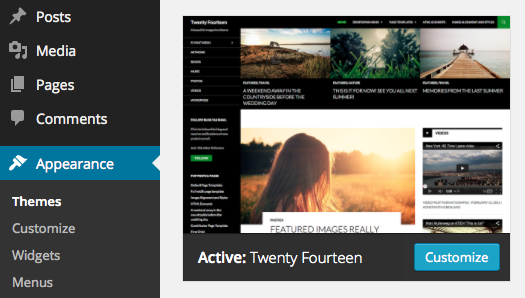
Step 5 – Switch to a default theme. A fresh install of WordPress and all plugins turned off, and it’s still not working right? Try switching to a default theme (any of Twenty Twelve, Twenty Thirteen or Twenty Fourteen will do). If this fixes your issue, you know it is your theme causing the wonkiness.
Step 6 – Check your wp-config.php file. If you are getting headers already sent errors it may be a problem with your config file. Check to see if there is any text or even spaces before the beginning <?php or after the final ?> in the file, and delete them.
You download it via the file manager available on most hosting control panels, and edit php files in the plain text editor on your computer (Notepad on Windows, Textedit on Mac). Some file managers let you edit files in the web browser. If you don’t have an online file manager you will need to use ftp to download the file.
Step 7 – Check file permissions. If you are having issues uploading images or plugin/theme files, you need to check the file permissions on the folders inside your wp-content directory. You can do this via an ftp program – you can usually find your ftp details on your host control panel. Your folders should have permissions set to 755 to allow uploads from the WordPress dashboard.
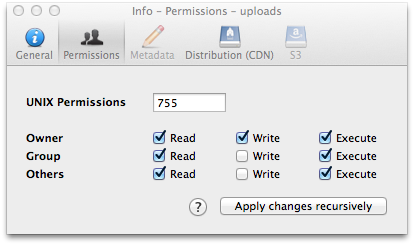
More information on file permissions for WordPress can be found here on the WordPress codex.
Step 8 – Check the support forums. WordPress.org hosts a fantastic support forum which is a mine of information. Search the forum for your problem and you might be able to find threads where people have had the same issue and solved it. If you have an error message at all make sure you pop it into the search box to see what comes up.
If you can’t log into your WordPress installation following a theme or plugin activation:
Force the plugin or theme to deactivate. If you installed a plugin or theme and your whole site went down when you activated it, you can force it to deactivate by logging into your ftp account or using a file manager on your control panel. Simply rename the folder of the offending plugin/theme, and that should disable it.
If you’re still stuck
Shout for help! if it proves beyond your capabilities to fix, the likelihood is a tech-minded friend or your hosting support team will be able to help. Failing that, post your issue on the WordPress support forum and hope someone can help. If none of these options do the trick, a last resort is to turn to a professional WP geek to fix it for you, there are several out there who will be able to give you an hourly rate for “rescue jobs”.
Hopefully these tips will be unnecessary for most of you, but hopefully people will find this helpful. Don’t hesitate to yell in my direction if you need some advice!

Thanks for the tips Zoe. I’ve currently got a strange error on my WordPress blog, but i’m not a php programmer so finding it hard to debug and get to the bottom of it! Most of the content is still showing but widgets are not showing. Weird. I really should start taking regular backups too.