

We recently added a new rules to the Facebook group, where all opps need to have a private way for people to give their details, I know a few people don’t understand this, so let me start with a quick explanation of why.
Sadly we have had multiple instances of people lifting emails to add to newsletters both from people looking to work with bloggers and bloggers themselves, this isn’t OK and is really quite rude and while we work to remove anyone doing this – to safe guard everyone in the group we thought it was best to ask people to privately collect the data they need for each opp.
However it has come to light many do know how to use Google docs (or similar) so this is a quick how to for anyone who may need it.
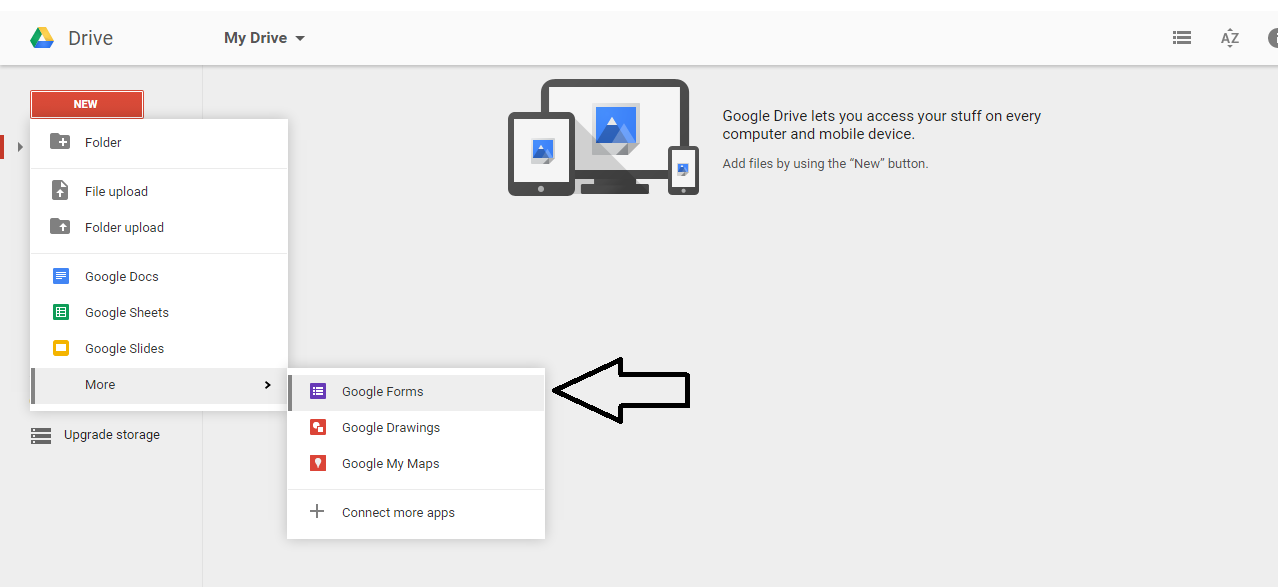
To start a Google document of any kind you need to head to Google Drive, once there you want to choose new and find Google Forms in the resulting drop down.
The page that opens up allows you to quickly and easily put a form together, there is a great range of options to choose from allowing you to give the person entering their details a range of different submission areas from a text entry (great from capturing URLS / Emails / prices), multiple choice boxes (if you have a range of posts on offer, say competition / sponsored post or review and you want to know which one people would be interested in). So play around with the options available to find what would best with the question you are asking.
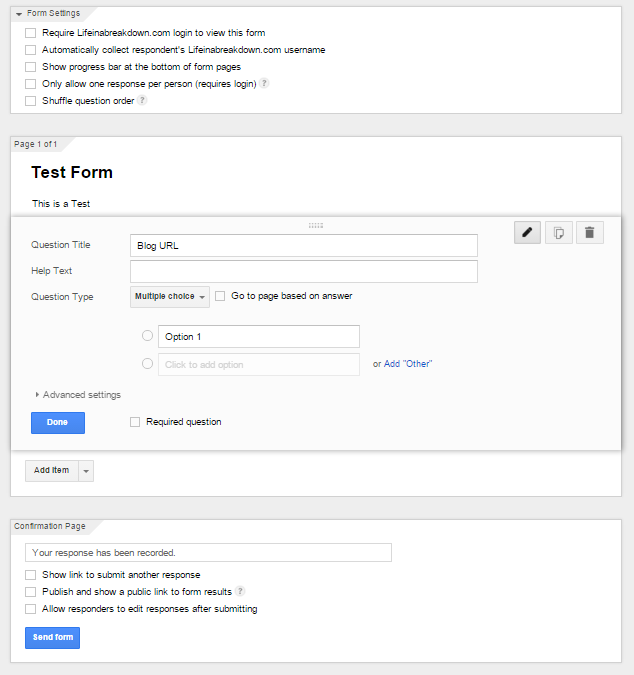
There are a lot of tick boxes either side of the form, make sure you read them all and tick any you want to use – I would suggest leaving them all unticked, sign-in isn’t really necessary and showing the responses to everyone is a definite no-no.
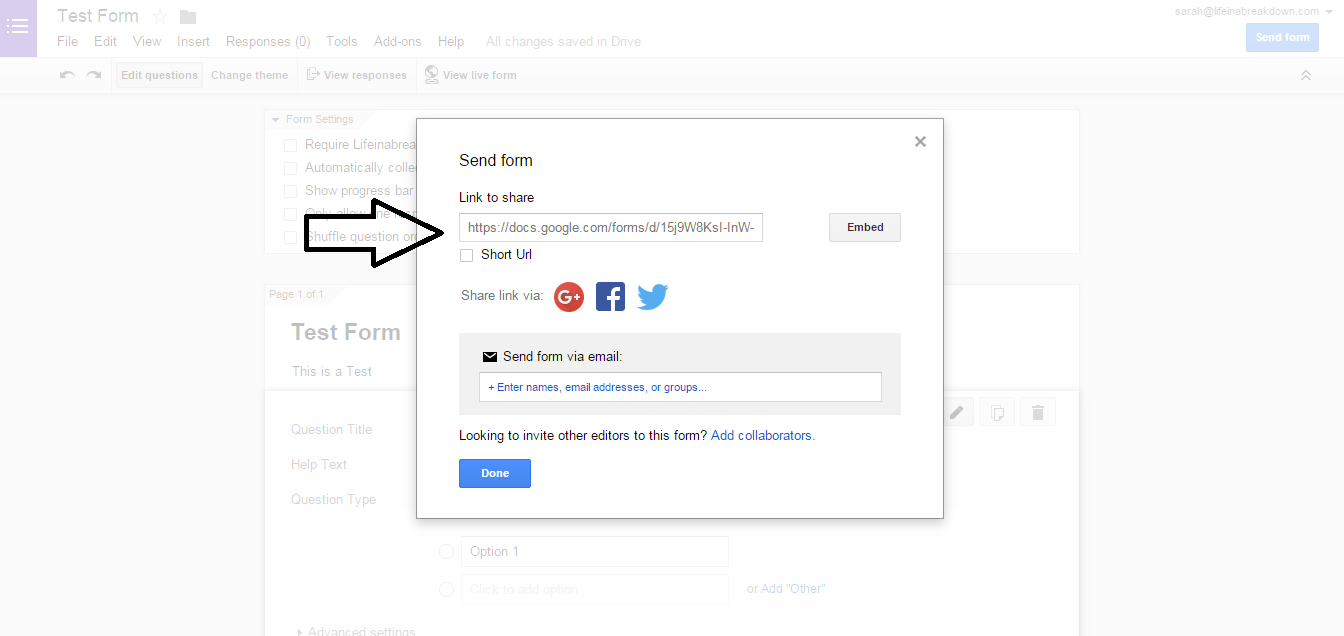
Once you are happy with your form it is time to share it, to do this you want to click the blue “send form” button in the right hand corner.

This will bring up a range of ways to send and share your completed form – for the purposes of sharing within the UK Bloggers Facebook Group you would want to grab the link.
I would suggest not using a shortened link, for some reason I have found these often don’t work.
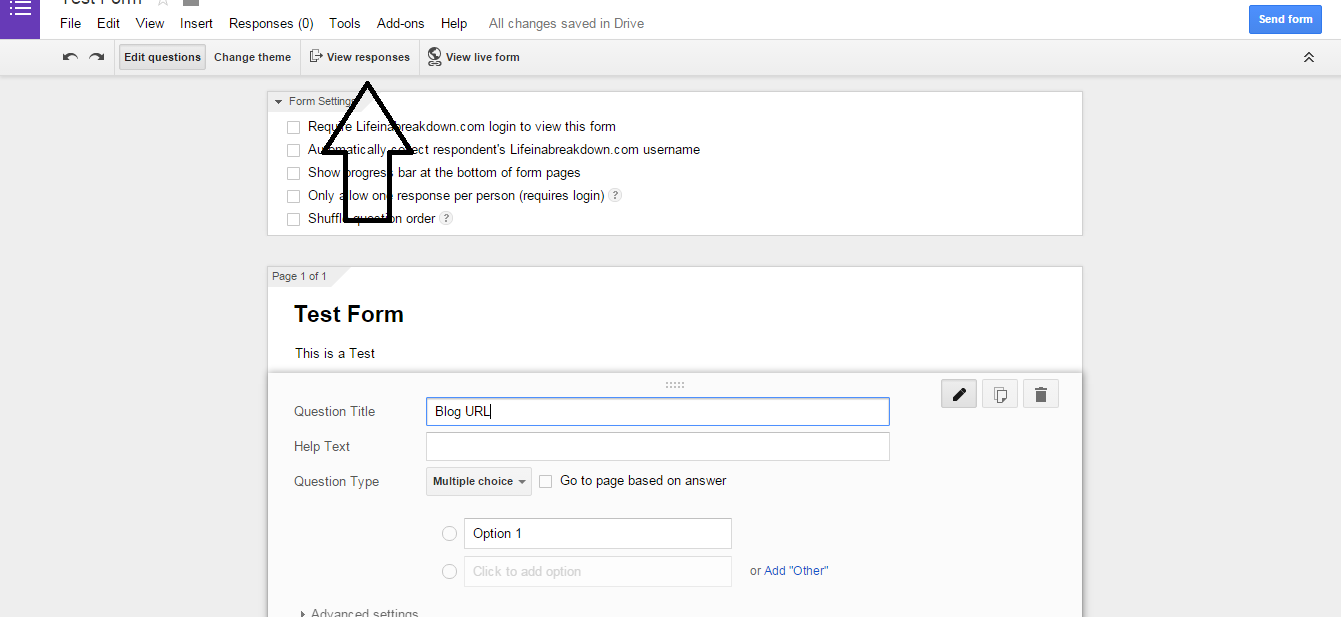
Of course you then want to see the responses, to do this for the first time, click view responses; this will allow you to set up a spreadsheet which is easily accessible and readable.
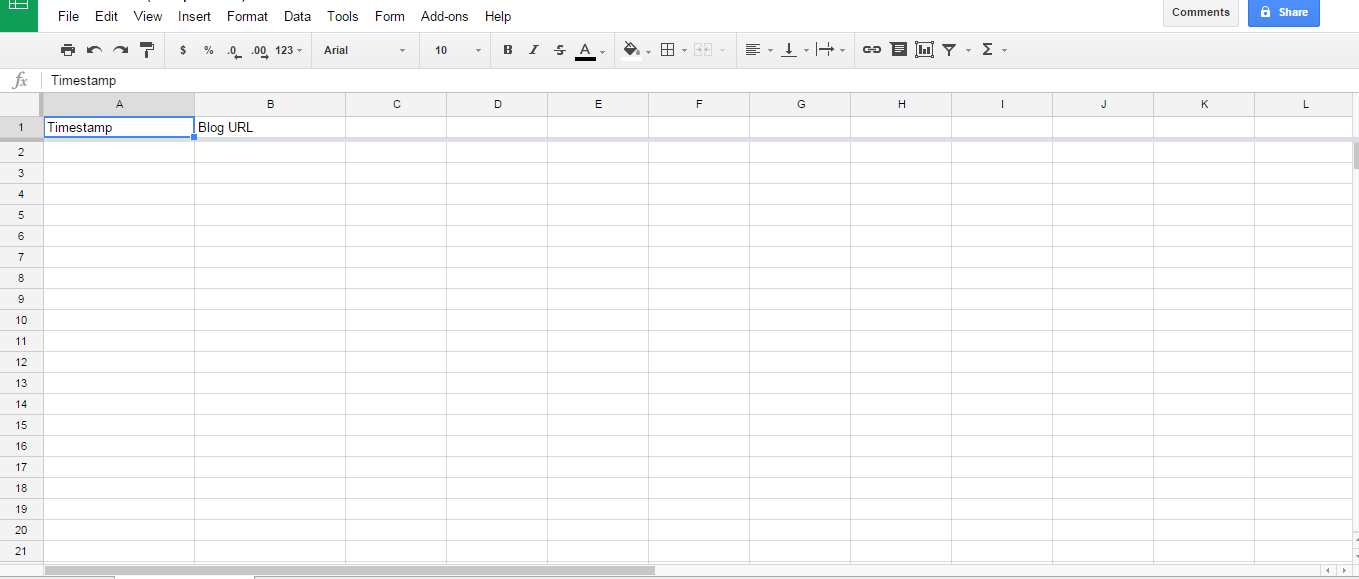
Both forms; the original sign up and the resulting spreadsheet, will be accessible from your drive and if you need to make more forms in the future you can quickly choose to make a copy of any you have previously made by right clicking on it within your drive.
I hope this helps anyone who is struggling to set up a form for use in UK Bloggers.

A great tutorial and I prefer to add my details to a firm rather than on a FB post so pleased to hear that you have changed the rules.